
Overview
- Tool name: Adobe Podcast
- Developer: Adobe
- Official website: https://podcast.adobe.com/
- Category: AI Audio & Voice
Adobe Podcast is an online AI audio recording and editing tool by Adobe. It helps creators record, transcribe, edit, enhance, and share voice content in a browser.
Key Uses
- Record podcasts and voice projects: Adobe Podcast supports solo recording and remote guest sessions, making it suitable for interviews, lectures, audio newsletters, and narrative shows.
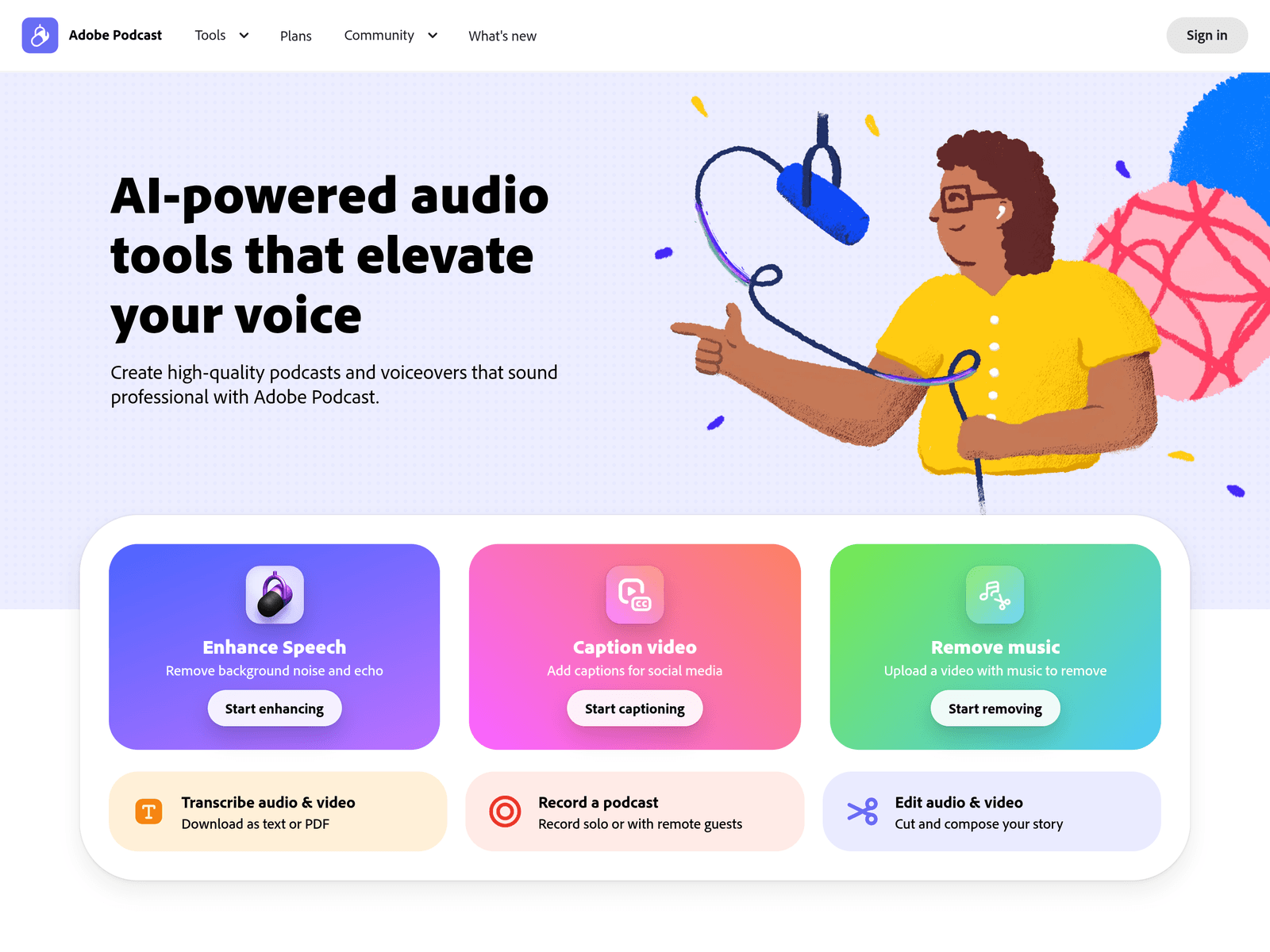
- Enhance spoken audio: Enhance Speech removes noise and echo from voice recordings, which can help when the original microphone or room quality is imperfect.
- Transcribe audio and video: The service can transcribe audio and video, with downloads available as text or PDF for scripts, show notes, captions, or review workflows.
- Edit audio like a document: Adobe Podcast Studio transcribes recordings and lets users cut, copy, and paste audio through text, reducing reliance on waveform-only editing.
- Caption video: Caption video adds captions for social media, helping creators publish clips that work in muted feeds or need accessible text overlays.
- Remove music from video: Remove music accepts a video with music and attempts to remove it, which can be useful when preserving speech or replacing the original soundtrack.
- Create audiograms and shareable clips: Studio supports audiograms and captions with themes, plus custom backgrounds for audiograms, helping turn audio into visual social assets.
- Use royalty-free music elements: Pre-edited royalty-free music collections include intros, outros, transition sounds, and background music for podcast packaging.
Who It Is For
- Solo podcasters: Independent creators can record, clean up speech, edit by transcript, and prepare episodes without installing desktop editing software.
- Interview and remote-show producers: Shows with remote guests benefit from separate speaker tracks recorded in 16-bit 48k WAV, even when a participant's connection is unstable.
- Educators and lecturers: Teachers can turn class recordings or lectures into transcripts, then remove pauses, mistakes, or unwanted sections more easily.
- Social video creators: Creators publishing short clips can add captions, enhance speech, or remove music before posting to platforms where silent viewing is common.
- Voiceover and narration creators: Narrators without a treated studio can record first and use speech enhancement to improve clarity before final delivery.
- Teams producing audio newsletters: Internal communicators can use browser-based recording, transcription, and light editing to produce spoken updates without a full production stack.
Tips for Best Results
- Start from a matching project template: The page offers project examples such as true crime podcast, class lecture, and fashion podcast. Choosing a similar project type can make the first recording and editing session easier.
- Enhance speech before detailed editing: If a recording has room noise or echo, run Enhance Speech early so later cuts are made on the cleaned version rather than repeatedly adjusting timeline sections.
- Use the transcript for rough cuts: Locate filler words, mistakes, and long pauses in the transcript first, then cut or rearrange the corresponding audio. This is often faster than scanning waveforms alone.
- Keep remote speakers on separate tracks: For multi-speaker recordings, use the individual tracks to balance levels and clean each voice separately before final export.
- Check file size and duration before uploading: Enhance Speech supports bulk uploads and video formats such as MP4 and MOV, but the listed limit is up to 4 hours per day and files up to 1 GB. Split long recordings if needed.
- Use built-in music for show packaging: Instead of searching externally, use the provided intro, outro, transition, and background music collections when a simple podcast-ready soundtrack is enough.
- Reserve Premium plan checks for final publishing: The page links Adobe Firefly Pro plan access to Adobe Podcast Premium and 4,000 generative credits per month. Confirm current plan details before relying on premium capacity for deadlines.
Limitations
- Browser-based workflow depends on connection quality: Adobe Podcast is designed to run in the browser without downloaded software, but recording, uploading, transcription, and enhancement still require a stable internet connection.
- Enhancement has daily and file-size caps: Enhance Speech is listed at up to 4 hours per day and files up to 1 GB. Larger archives may need splitting, batching, or extra processing time.
- Studio is marked BETA: The Studio label includes BETA, so features may still change. For important projects, keep original recordings and exported backups outside the browser session.
- AI enhancement cannot fix every source problem: Noise and echo reduction can improve imperfect recordings, but severe clipping, dropouts, overlapping speakers, or heavily distorted audio may still limit results.
- Some details depend on official plan pages: The source material does not specify every export format, supported language, or collaboration feature. Pricing, trial terms, and premium access should be checked on the official page.
Frequently Asked Questions
How do I start using Adobe Podcast?
Adobe Podcast can be used directly in a browser without downloading software. Users can start with Enhance Speech, Caption video, Remove music, Transcribe audio & video, or Studio. For a full episode, Studio provides a project-based path for recording and editing.
Is Adobe Podcast free to use?
The page mentions starting a free trial and links Adobe Podcast Premium to the Adobe Firefly Pro plan. The provided material does not list every free-tier limit, so current free access, trial length, and paid terms should be confirmed on the official page.
What file formats and upload limits does Enhance Speech support?
Enhance Speech supports video files such as MP4 and MOV and allows bulk uploads. The listed limits are up to 4 hours of enhancement per day and files up to 1 GB. Longer or larger recordings may need to be divided before processing.
How is Adobe Podcast different from traditional audio editors?
Traditional editors usually rely on local software, waveform editing, and manual noise tools. Adobe Podcast combines browser recording, transcription, text-based editing, and one-click speech enhancement. It is especially aimed at spoken-word content rather than full music production.
Can Adobe Podcast help if I do not have a professional microphone?
Yes, Enhance Speech is designed to fix audio problems after recording and does not require a perfect microphone. However, results depend on the source audio, so recording in a quieter room and avoiding clipping will still produce a better final voice track.