
Overview
- Tool name: Zoom Workplace
- Developer: Zoom
- Official website: https://www.zoom.com/zh-cn/products/collaboration-tools
- Category: AI Productivity
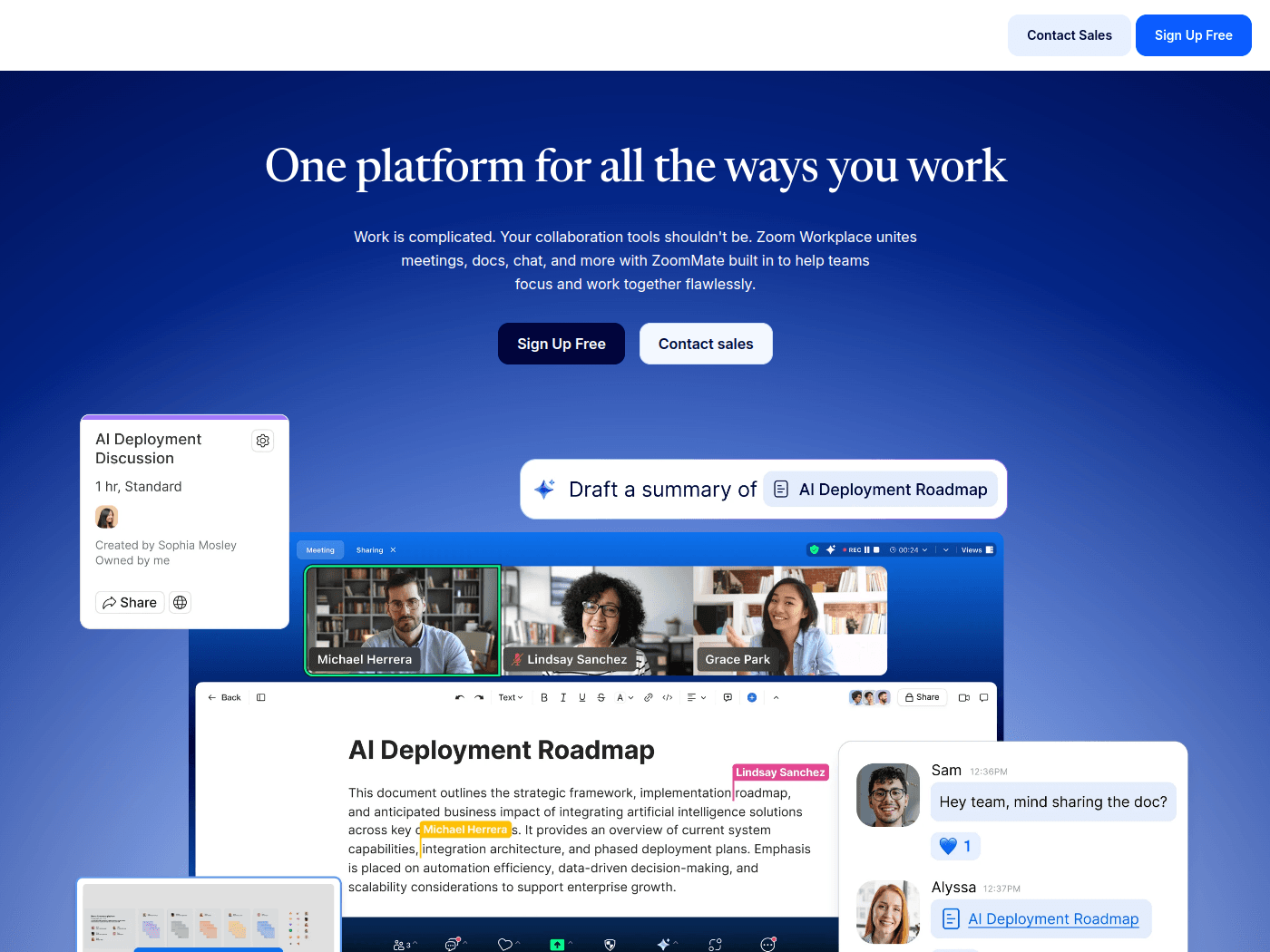
Zoom Workplace is an AI productivity and collaboration platform by Zoom for team communication. It combines meetings, chat, phone, mail, calendar, whiteboards, and notes in one workspace. The platform helps teams reduce tool switching and move work forward.
Key Uses
- Run and join online meetings: Zoom Workplace supports hosting, scheduling, and joining meetings for internal teams, client conversations, project reviews, and distributed workforce communication.
- Keep conversations moving between meetings: Team members can use chat and phone features for quick questions, task follow-ups, and ongoing discussions without scheduling another full meeting.
- Manage mail, calendar, and scheduling in one place: The platform can bring email, calendar, and meeting planning together, helping users organize time and reduce context switching across separate tools.
- Capture ideas with whiteboards, notes, and canvases: Zoom Workplace includes collaborative surfaces for brainstorming, meeting notes, planning, and turning discussions into materials that teams can revisit later.
- Use AI-first workflows across the meeting lifecycle: The platform emphasizes AI-assisted work, including meeting support, information organization, and workflows that help convert conversations into actionable outcomes.
Who It Is For
- Remote and hybrid teams: Teams that need a shared environment for meetings, messaging, calls, and scheduling across different locations can use Zoom Workplace to maintain continuous communication.
- Cross-functional project groups: Product, sales, marketing, customer experience, and human resources teams can use it to reduce reliance on disconnected collaboration tools.
- Customer-facing organizations: Companies that hold frequent external meetings, demos, and client calls may benefit from combining meetings, scheduling, notes, and follow-up materials in one platform.
- Enterprises standardizing collaboration tools: Organizations trying to reduce tool sprawl and consolidate communication, productivity, and workspace features may find the platform suitable for broader deployment.
Tips for Best Results
- Start with the modules your team actually needs: Zoom Workplace covers communication, productivity, spaces, and employee engagement tools, so it is best to enable core features first and expand after workflows are clear.
- Connect meetings to follow-up work: Use notes, whiteboards, calendars, and task-related outputs together so meeting discussions do not end when the call finishes.
- Match the communication channel to the task: Use chat or phone for quick updates, meetings for structured discussions, and collaborative documents or boards for longer-term work artifacts.
- Review administration and security requirements before rollout: Enterprise users should confirm account management, device support, data policies, and internal compatibility before adopting the platform widely.
Limitations
- Broad feature set may require configuration: Because Zoom Workplace spans meetings, chat, phone, mail, calendar, whiteboards, and more, teams may need planning to avoid unnecessary complexity.
- Feature availability may depend on plan or organization settings: The provided information does not specify every module’s availability, so access to certain AI features or tools may vary by account type, region, or subscription.
- May be more than a single-purpose tool: Users who only need basic video calling or simple messaging may find a full collaboration platform broader than necessary.
Frequently Asked Questions
How do I start using Zoom Workplace?
You can start by visiting the Zoom website and signing in or creating an account. After that, choose the modules your team needs, such as meetings, chat, phone, mail and calendar, or whiteboards, and configure them around your workflow.
Is Zoom Workplace free to use?
The page shows a free sign-up option, but the exact free features, limits, and upgrade paths depend on Zoom’s current plans. Availability may also vary by region, account type, and organizational settings.
What platforms or devices does Zoom Workplace support?
The site references web access, desktop downloads, and mobile apps through the App Store and Google Play. For specific operating system requirements, check Zoom’s download and support pages before deployment.
How is Zoom Workplace different from a basic video meeting app?
A basic video meeting app mainly handles calls, while Zoom Workplace is designed as a broader collaboration platform. It connects meetings with chat, phone, mail, calendar, whiteboards, notes, and AI-assisted workflows.
What are alternatives to Zoom Workplace?
Alternatives include standalone video conferencing apps, team messaging platforms, or broader office suites. The best choice depends on whether your team prioritizes meetings, messaging, scheduling, documentation, or AI-assisted collaboration.