
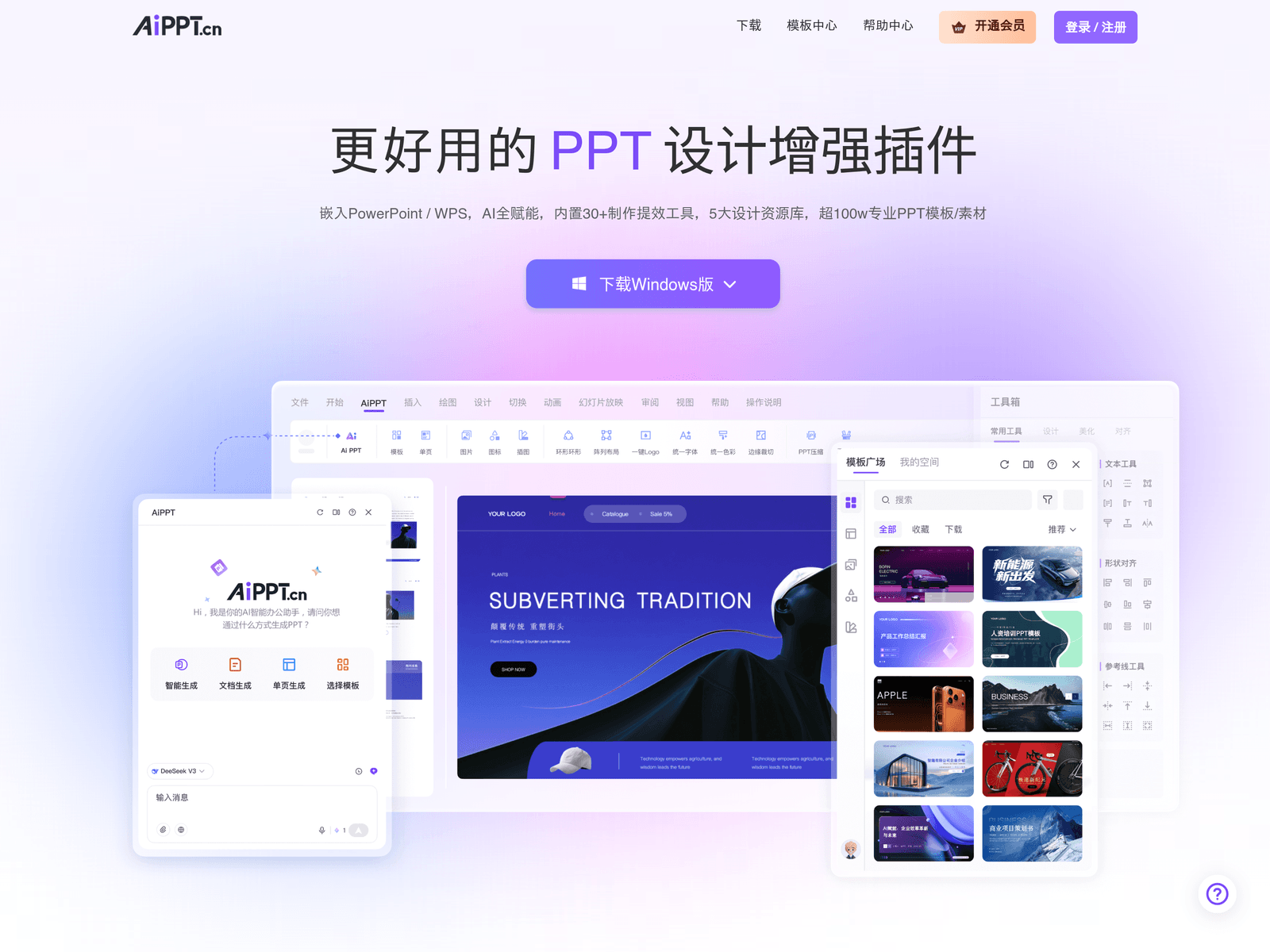
Overview
- Name: AiPPT Plugin
- Developer: AiPPT (Beijing PixelBloom Technology)
- Official site: https://www.aippt.cn/plugin
- Form factor: PowerPoint / WPS add-in
- Platforms: PowerPoint and WPS Presentation on Windows
- Category: AI Productivity
AiPPT Plugin is a PPT design add-in that lives inside PowerPoint and WPS. Once installed you no longer switch to a browser to build slides - open the AiPPT tab in the Office ribbon and you can generate a whole deck from one sentence, swap templates, unify fonts and colours, add logos or watermarks, all inside the editor you already have open.

The official positioning is "a better PPT design enhancement plugin", backed by three numbers: 30+ productivity tools, 5 design resource libraries, and over 1 million professional templates and assets.
Main uses
- Generate a full deck from one sentence: describe what you need or upload a document, and get a complete professional presentation instead of starting from a blank outline.
- Draft and polish copy: when the body text will not come, have it write, rewrite or tighten the wording in place - no copy-paste round trip through another tool.
- Unify layout in one click: change or standardise fonts, colours and themes, pulling a patchwork deck back to one visual system.
- Swap templates without redoing content: apply a new template to selected slides and keep the content - the most practical advantage of the add-in form.
- Add brand elements in bulk: insert a logo or watermark across the whole deck for anything going outside the company.
- Find assets: five libraries covering templates, single pages, images, icons and illustrations, with one-click replacement.
- Export in multiple formats: fast export of PPT files to other formats.
- Work offline: built-in offline design tools let you lay out slides and adjust styles without a connection.
Pricing
- Download and installation: free from the official page; installing costs nothing.
- Free tier (CNY 0/month): 2 AI-generated PPTs per day (6 total); 1,000 AI credits on signup; one-click optimisation of colours, background, fonts and sizes; Markdown and mind-map import; 100MB file library; 50 AI image generations per month; 100 AI assistant calls per day.
- Standard: 30 AI-generated PPTs per day; downloads of 200,000 templates plus a personal commercial licence; document and URL import; professional layouts and creative mode; PPTX / PDF / image export; AI beautify; 600MB file library; 150 AI images per month; 1,000 AI assistant calls per day.
- Pro: everything in Standard plus 15,000 AI credits per month, 10 concurrent Agent tasks, unlimited generated pages, removal of the "Made with AiPPT" mark, 5 minutes of digital-human video, advanced image models, unlimited custom templates.
- Enterprise: API integration, private deployment, enterprise cloud console, licensed asset library, standalone offline edition, enterprise data security, custom templates, SSO, optional custom LLM.
The free tier's zero price and quotas are stated on the official site. The actual prices for Standard, Pro and Enterprise are not printed on the page - the pricing page only offers monthly/annual toggles with the amount loaded dynamically. This page does not guess; check the AiPPT pricing page for current figures.
Who it suits
- Anyone with a weekly report: status decks, monthly reviews, quarterly retrospectives - generate the skeleton, then edit the content instead of starting from a blank slide.
- People who are not designers: layout, colour and typography handled by one-click tools, producing tidy slides without design training.
- Teams that need brand consistency: set the logo, watermark and theme once so everyone's output looks like it came from the same place.
- People who reuse their own templates: keep a house template and change content rather than layout.
- Restricted or offline environments: offline design tools cover the basics without an internet connection.
- Students preparing coursework or defences: the free quota is enough for one complete presentation, with no separate design software to buy.
How to use AiPPT Plugin
1. Open https://www.aippt.cn/plugin and click any "free download" button to reach the download page.
2. Find the installer on that page, download it and double-click to run.
3. Follow the prompts; the official site says installation takes about 1-3 minutes.
4. When it finishes, open PowerPoint or WPS Presentation.
5. The add-in loads automatically - look for the AiPPT tab in the top ribbon.
6. Open it to use AI generation, the design tools and the asset libraries.
7. Sign in with an AiPPT account on first use; the free tier grants a starter quota.
If AiPPT does not appear in the ribbon after installing, first check whether the add-in has been disabled in Office's add-in settings, then re-run the installer to repair. The official FAQ lists this problem separately, which suggests it is not rare.
Practical advice
- Let it build the skeleton, then you fix the content. The layout and structure are usually good enough; the numbers and wording are yours to check, especially for anything leaving the company.
- Set brand colours and fonts before generating. Standardising up front beats fixing page by page afterwards.
- Long documents beat one-line prompts. Give it a substantial source text and you get a more sensible structure than from a vague request.
- Swap the template instead of fixing pages. When the layout is wrong, change the template for the whole deck rather than dragging text boxes around.
- Ration the free quota. Two generations per day is for evaluation, not experimentation - test styles with the offline tools and manual layout first.
- Test offline mode before an important presentation. If you will be editing in a meeting room without Wi-Fi, confirm the offline tools work beforehand.
- Verify every chart and figure. AI-generated charts can misattribute data; check data slides against the source file.
- Start the whole team from one template. When everyone begins from their own layout, merging decks at the end is painful.
Limitations and cautions
- PowerPoint and WPS only. If you work in Keynote, Google Slides or a browser-based editor, this add-in does not apply.
- Desktop installation required. It is an Office add-in, not a web app; there is no browser-only version.
- The free tier is tight. Two generations per day is fine for evaluation, not for real workload.
- System and Office version requirements are not spelled out. The official FAQ raises the question without listing supported versions - confirm with support or on the download page before installing.
- Paid tier prices must be checked yourself. Only the free tier's zero price is stated; other amounts load dynamically on the page, so this page lists no figures.
- Commercial licensing varies by tier. The free tier carries no commercial licence; Standard is the first tier that explicitly includes template downloads and a personal commercial licence.
- AI-generated charts need review. Trust the layout, not the numbers.
- Cross-device versions may differ. The add-in, web app and mobile app share an account but not an identical workflow - verify important files once in the web app.
Frequently asked questions
Does AiPPT Plugin cost anything?
The add-in itself downloads and installs free from the official site. What you can actually do depends on your account tier: the free plan is CNY 0 per month with 2 AI-generated decks per day; Standard, Pro and Enterprise are subscriptions with increasing quotas and features.
How is it different from the AiPPT web app?
The web app generates and edits in a browser. The add-in sits inside PowerPoint and WPS, so you can work on existing local decks without export/import, and apply its design tools to files you already have.
Which systems and Office versions are supported?
The official site states PowerPoint and WPS. Specific operating system and Office version requirements are raised in the FAQ but not itemised, so confirm with official support before installing.
Does it work offline?
Yes - the site explicitly mentions built-in offline design tools that work without a network, for layout and styling. AI generation features still require a connection.
AiPPT does not appear in the ribbon after installation. What now?
Check whether the add-in is disabled in Office's add-in settings first, then re-run the installer to repair. The official FAQ lists this issue separately, so it is a known scenario.
Can I use the generated decks commercially?
It depends on your tier. The free plan carries no commercial licence; from Standard upward the plan explicitly includes template downloads and a personal commercial licence. Confirm your subscription status before commercial use.
Is the free tier enough?
Enough for one complete presentation, not for sustained use. Two generations per day and 100 AI assistant calls per day suit evaluation and light use.
*This page is not affiliated with AiPPT. Information is based on the aippt.cn plugin page and official pricing page (October 2026). Prices and quotas may change - check the official site for current terms.*