
AI-NAV · Article
Codex Tutorial: Install and Ship Your First Project

Prerequisites
Start with a ChatGPT account. The official Codex page describes three forms—Codex in ChatGPT, the IDE extension, and Codex CLI—and says they are connected by your ChatGPT account, so an account is the one requirement you cannot skip. If you do not have one, create it before moving on.
Also prepare a computer with a browser or a terminal. The ChatGPT form only needs a browser, while the IDE extension and CLI need an editor or terminal with network access. Check the official Codex page for the current supported environments, because the exact list can change between releases.
Pick a small, well-scoped task before you install anything. The official page lists feature implementation, complex refactors, testing, code review, releases, issue triage, alert monitoring, and CI/CD as areas Codex can handle. For your first run, choose a task that touches one or two files—such as adding unit tests for one function—rather than a cross-module refactor.
Step-by-step Setup
Use this order for the first walkthrough: open the official page, sign in, choose a form, install if needed, run a readiness check, then give a task.
- Open the official entry point. In a browser, go to
https://openai.com/codex/. Success looks like seeing the three forms described: Codex in ChatGPT, the IDE extension, and Codex CLI.
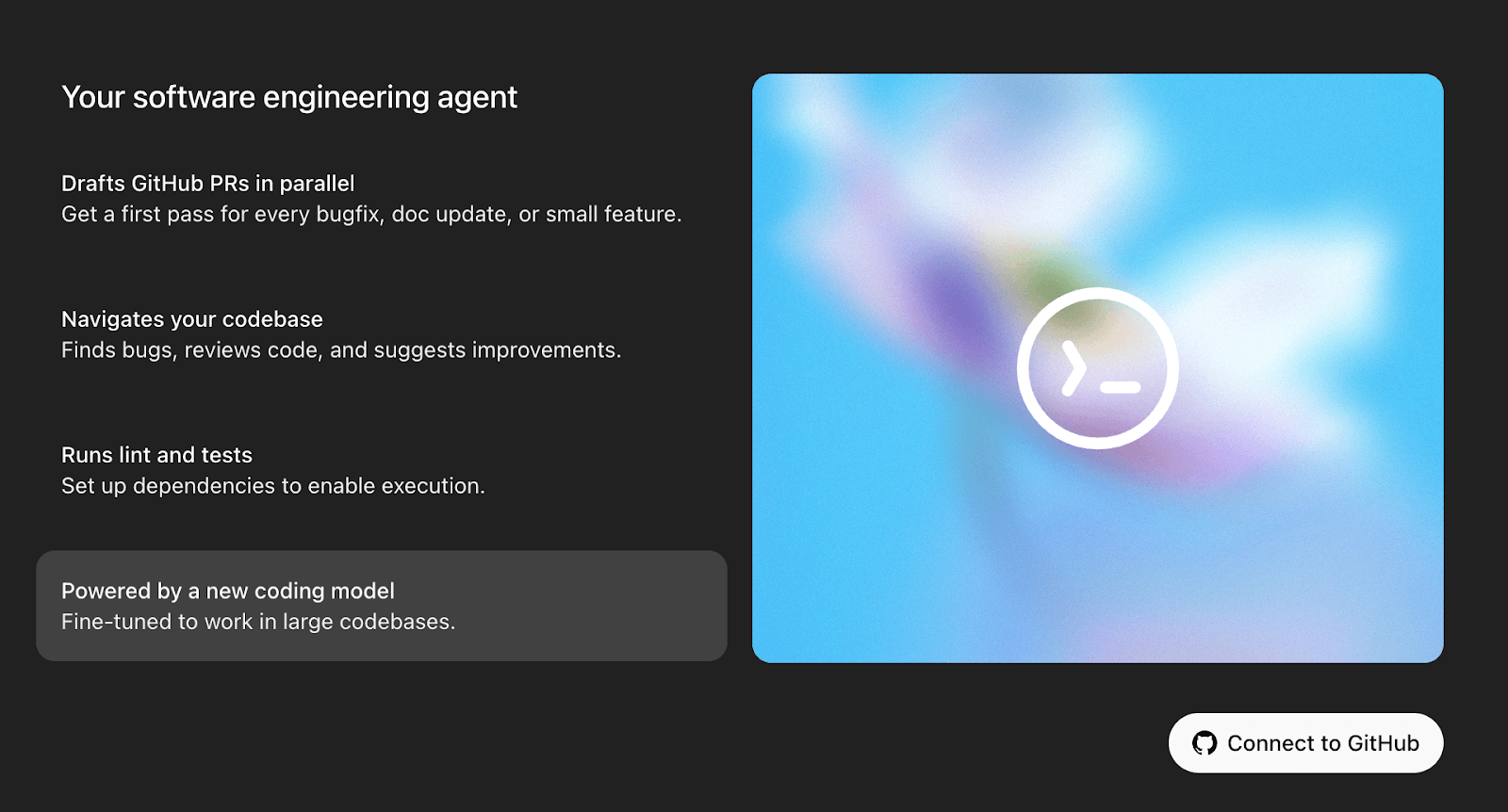
- Sign in to your ChatGPT account. Click the sign-in control on that page and complete sign-in with your ChatGPT account. Success means you can get back to the Codex page and access the entry points for each form.
- Pick a form. For the first time, use Codex in ChatGPT, because it requires no separate installation. Success means you can start a Codex session in the chat interface; the exact placement of the entry point may vary, so follow what the current official interface shows.
- If you choose the CLI, install it with the command shown on the official page. Open a terminal, copy the installation command from the CLI section of
https://openai.com/codex/, paste it, and press Enter. Success means the command finishes without an error and the terminal returns to a prompt.
- Run a readiness check in the terminal. After installation, run:
codex --helpSuccess means the terminal prints help text rather than a "command not found" error. If help does not appear, revisit the installation step before continuing.
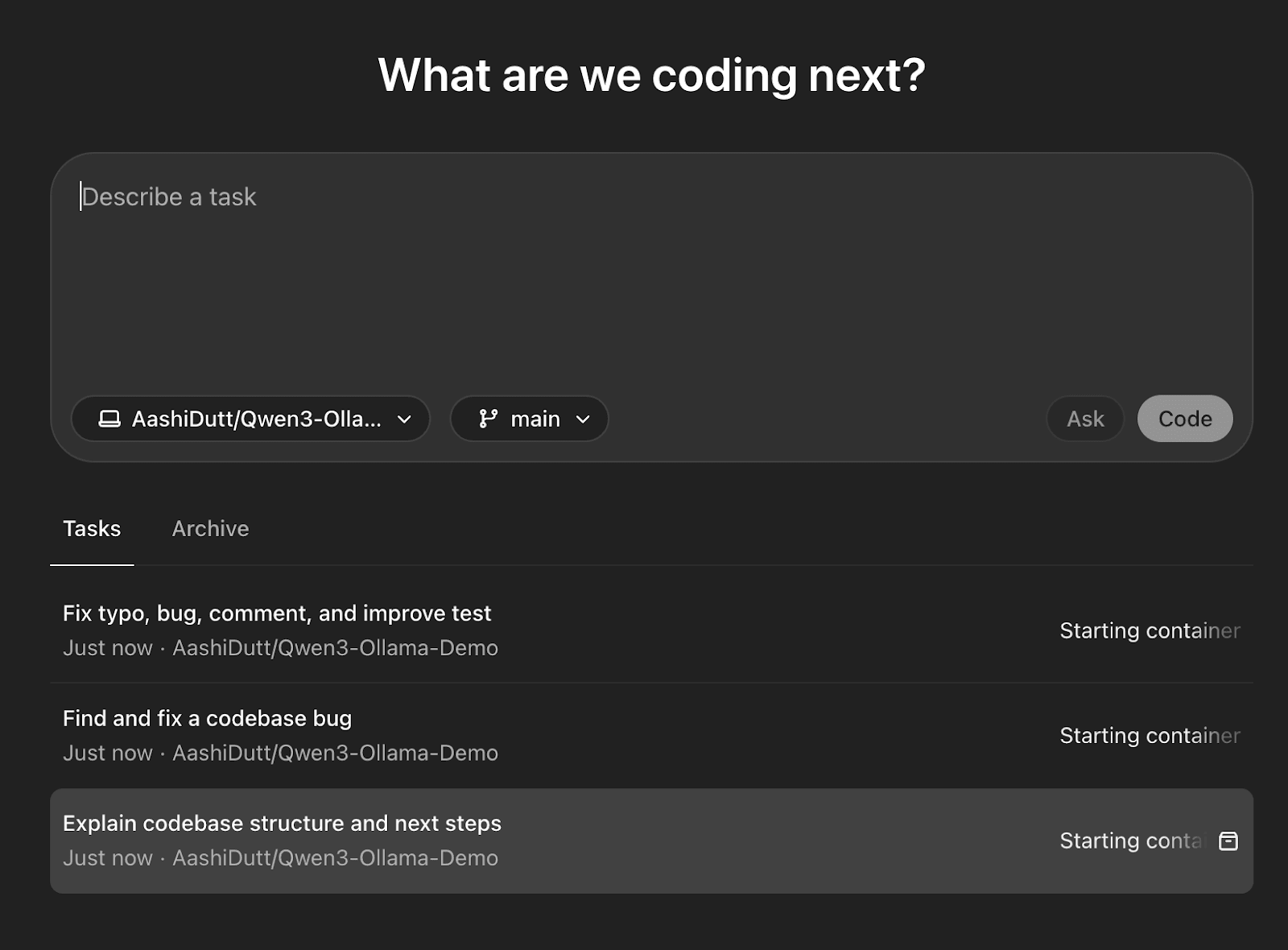
- Give your first task. Include both a task and an acceptance check, for example: "Read the Python files in the current directory and generate unit tests for the
parse_datefunction." Success means Codex starts returning a plan or code result instead of staying idle.
How to Verify It Works
Do not treat "no error" as the only sign of success. Run two checks: one for readiness and one for the task result.
For readiness, confirm the surface you chose is listening. In the CLI, run codex --help or codex --version and look for help or version output. In ChatGPT, the success signal is a Codex session that accepts instructions and returns work. In the IDE, the success signal is an extension entry point that responds to a command. If the button or menu name differs, follow the current official documentation.
For task quality, turn the acceptance criteria from your task prompt into a checklist. If the task was "generate tests for parse_date", verify that a test file exists, that the tests run, and that the change set does not drift far beyond the target function. If the task was "fix a bug", reproduce the original trigger condition and confirm it no longer fires.
A second small task can tell you more than the first one. The official page lists refactoring, test generation, and code review among Codex's capabilities, so run a small refactor or review after the first test and compare the output scope and correctness against the same checklist.
Key Concepts Behind the Steps
Codex is not one button; the same agent appears in three surfaces. Codex in ChatGPT is the conversational coding agent, the IDE extension runs inside your editor, and Codex CLI runs in a terminal. All three share the ChatGPT account you used at sign-in.
| Form | Entry point | Best for |
|---|---|---|
| Codex in ChatGPT | ChatGPT web | Task planning and multi-agent work |
| Codex IDE extension | Code editor | Editing and single-file refactors |
| Codex CLI | Terminal | Command-line and scripted workflows |
Skills is the feature for encoding team habits. You can teach Codex your coding standards, workflows, and conventions, and the official page says Codex applies them consistently across tasks. The immediate effect is fewer manual corrections for repetitive review feedback.
The multi-agent workflow is another official concept. With built-in worktrees and cloud environments, Codex can run agents in parallel across projects. It is not required for your first project, but it explains why Codex is framed as a team tool as well as a solo pairing aid.
Codex's range is broader than writing new code. The official page lists feature work, complex refactors, migrations, code review, releases, issue triage, alert monitoring, and CI/CD. That means you can use it interactively or schedule it for background work, depending on the task.
What to Do Next
Your next step depends on where you spend most of your time. If you write in an editor every day, install the IDE extension and route small refactors and code reviews through it. If you live in the terminal, connect the CLI to a scriptable workflow, such as running a review before a merge request.
For teams, the highest-value next step is to define Skills: add your coding standards, directory conventions, and review habits, then check whether Codex follows them across several tasks. This is more useful than trying every feature at once.
When you compare Codex with other coding agents, check entry points, account model, task verification, and where the tool runs. The feature set, pricing, and availability can change, so confirm current details on the official page before making a longer-term choice. See How to Choose an AI Coding Agent: A Beginner Checklist for a checklist, or browse AI Coding Tools to compare alternatives with the verification method above.
Troubleshooting
Start by separating a readiness problem from a task-description problem. If the tool is installed and responding, the issue is usually the prompt; if no surface responds, fix installation and sign-in first.
- Symptom:
codex --helpreturns "command not found". Cause: the CLI did not install, or the current terminal was opened before installation. Fix: copy the install command from the official page again, rerun it, then open a new terminal window and retry.
- Symptom: after sign-in, you cannot find a Codex entry point in ChatGPT. Cause: account state or product changes. Fix: re-enter from
https://openai.com/codex/, confirm your ChatGPT account is signed in, and follow the current official interface.
- Symptom: the IDE extension is installed but will not respond. Cause: the editor version may not be supported, or the extension is not enabled. Fix: check the official support list, restart the editor, and if it still fails, switch to the ChatGPT web form to confirm the account itself works.
- Symptom: a task stops midway or returns incomplete output. Cause: the task is too large, or the network is unstable. Fix: split the task into smaller subtasks, rerun one subtask, then check the connection.
- Symptom: the generated code runs but does not meet expectations. Cause: acceptance criteria were unclear or the scope was fuzzy. Fix: restate the input, output, and constraints, then give the task again.
If none of these fixes work, return to the ChatGPT web form and confirm your account can complete a plain coding request. That isolates account-level issues from installation issues.
Frequently Asked Questions
How do I use Codex?
Use Codex from one of three entry points—ChatGPT on the web, the IDE extension, or the CLI—sign in with a ChatGPT account, and give a coding task with clear acceptance criteria. All three forms share the same account.
What do I need to install Codex?
The main requirement is a ChatGPT account and a network path to https://openai.com/codex/. Additional requirements depend on the form you choose, so check the current official page before installing.
What is the difference between Codex CLI and the IDE extension?
The CLI runs in a terminal and fits command-line or scriptable workflows. The IDE extension runs inside your editor and fits editing, single-file changes, and immediate review. Both share the ChatGPT account and the underlying agent.
What tasks is Codex good for?
The official page lists planning and feature implementation, complex refactors, migrations, test generation, code review, releases, and background work such as issue triage, alert monitoring, and CI/CD.
What do Skills do in Codex?
Skills let you teach Codex your team's coding standards, workflows, and conventions so it applies them consistently across tasks. That reduces how often you have to correct the same issue manually.
What should my first Codex task be?
Start with a small task with a clear boundary and a visible result, such as adding tests for one function. Avoid a cross-module refactor until you have a working workflow and verification routine.