
Overview
- Tool name: Freepik AI Image Generator
- Developer: Freepik Company S.L.U.
- Official website: https://www.freepik.com/ai/image-generator
- Category: AI Image Tools
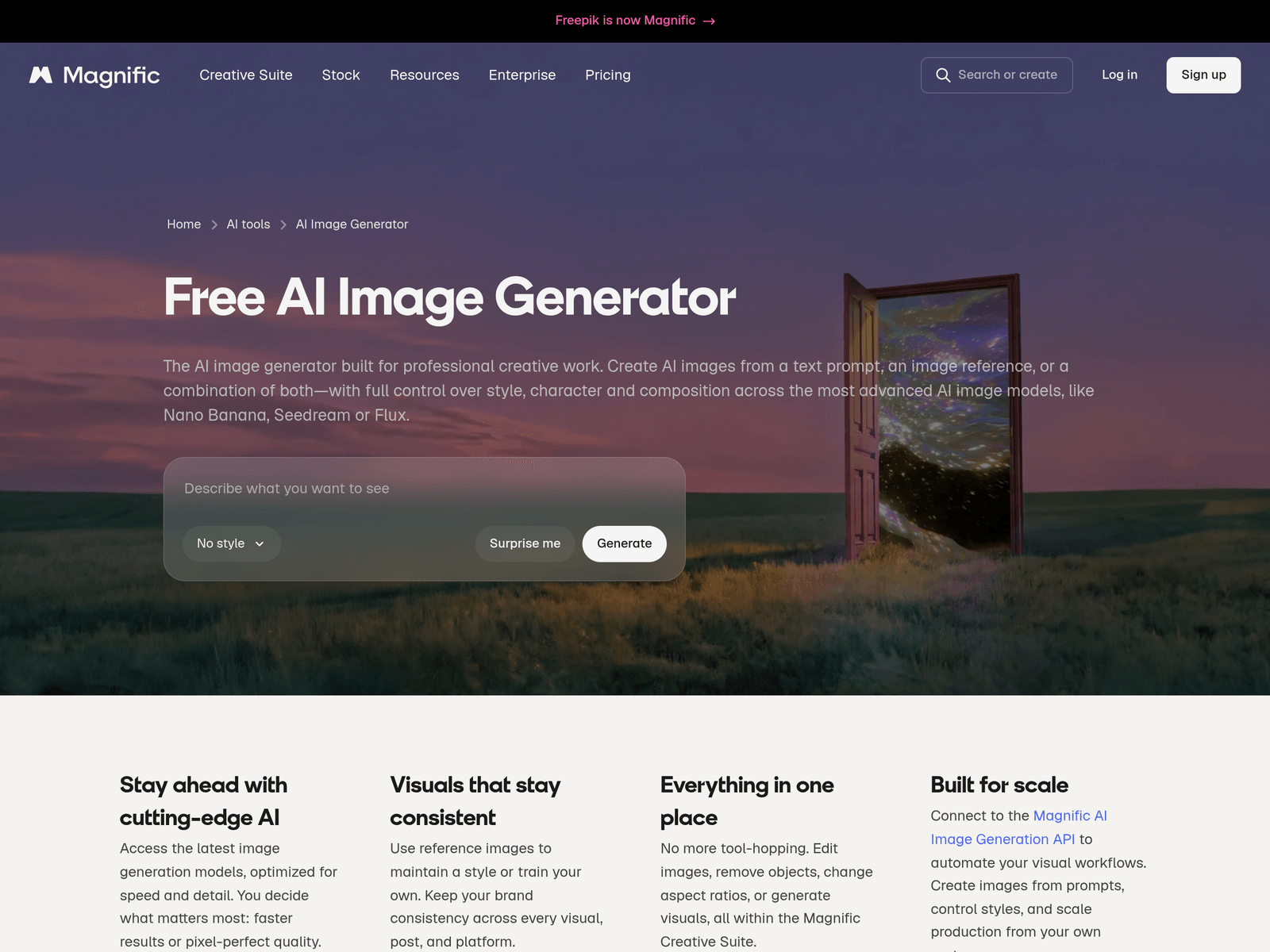
Freepik AI Image Generator is an AI image generation tool for creating visuals from text prompts, reference images, or both. It supports multiple image models and is aimed at professional creative workflows that need style control, consistency, and scalable production.
Key Uses
- Text-to-image creation: Users can enter a text prompt to generate images, turning short creative descriptions into visual assets without starting from a blank canvas or stock search.
- Reference-based generation: The tool accepts reference images, which helps preserve a chosen look across multiple outputs. This is useful when a brand, campaign, or project needs repeated visuals with a consistent style.
- Model selection for different outputs: Several AI image models are listed, including Google, Flux, Ideogram, GPT, Mystic, and Classic. This allows users to choose a model based on the type of image they want to produce.
- Balancing speed and detail: The tool lets users prioritize faster results or higher visual detail. This makes it suitable for quick concept exploration as well as more polished image production.
- Workflow integration inside a creative suite: The generator is positioned within a broader creative environment that includes image editing, object removal, aspect ratio changes, and other visual tools, reducing the need to move between separate products.
- API-based automation: The official page mentions connecting to an image generation API to create images from prompts, control styles, and scale production from an external system. This is relevant for teams with batch generation or integration needs.
Who It Is For
- Brand and marketing teams: Teams that need consistent visuals across posts, pages, and campaigns can use reference images to keep style elements aligned instead of generating unrelated images each time.
- Designers and art directors: Creative professionals can use the generator to explore composition, mood, color direction, and visual concepts before moving into more detailed production work.
- Content producers needing volume: Websites, campaigns, and product teams that require many images may benefit from API access and a workflow that connects generation with later editing tasks.
- Users comparing multiple image models: Because the tool provides access to several models in one place, it suits people who want to test different generation styles without opening separate services for each model.
Tips for Best Results
- Describe the subject, scene, and style clearly: Prompts that include the main subject, environment, lighting, composition, and visual style are more likely to produce usable results than very short or vague phrases.
- Use reference images for consistency: When creating a series of related visuals, a reference image can help maintain the same look across outputs. This is especially useful for brand assets or recurring content formats.
- Match the model to the task: Different models may suit different goals, such as faster drafts, more detailed images, or specific visual styles. Trying more than one model can help identify the best fit for a project.
- Plan generation and editing as separate steps: Generate the base image first, then use related editing tools for object removal, cropping, or aspect ratio changes. This keeps the workflow organized and avoids relying on one prompt to solve every issue.
Limitations
- Results depend heavily on prompt quality: If the prompt is too broad or the reference image is unclear, outputs may vary widely. Users should expect to revise prompts and generate multiple versions before finding a suitable result.
- Model choice affects outcomes: The availability of multiple models does not mean every model will perform the same way. Users still need to select models according to the intended image type and quality level.
- Usage rights should be checked before commercial work: The official page includes a question about whether generated images are copyrighted. Users should review the applicable terms for their own commercial, editorial, or client use before publishing or delivering assets.
Frequently Asked Questions
How do I start using Freepik AI Image Generator?
Visit the official page and sign in or create an account if required. Then enter a text prompt, add a reference image if needed, choose an available model, and generate the image. Further adjustments can be made through the surrounding creative tools.
Is Freepik AI Image Generator free?
The page title includes Free AI Image Generator, indicating that a free entry point is presented on the official page. The exact limits, account requirements, or paid options should be checked after logging in, because the available details may depend on the current plan.
Which AI image models are available?
The listed model options include Google, Flux, Ideogram, GPT, Mystic, and Classic. The page also notes that Google models cover Imagen for photorealistic text-to-image generation and Nano Banana for generation combined with natural language editing.
Is this tool suitable for professional creative work?
The official description positions it as an AI image generator built for professional creative work. Features such as reference images, style control, multiple models, and API access are more relevant to production workflows than simple one-prompt image generation.
How is it different from a single text-to-image tool?
Freepik AI Image Generator is presented as part of a broader creative suite rather than only a prompt box. It supports reference-based generation, multiple models, and connections to editing tools, which can help users produce and refine a series of images more efficiently.