
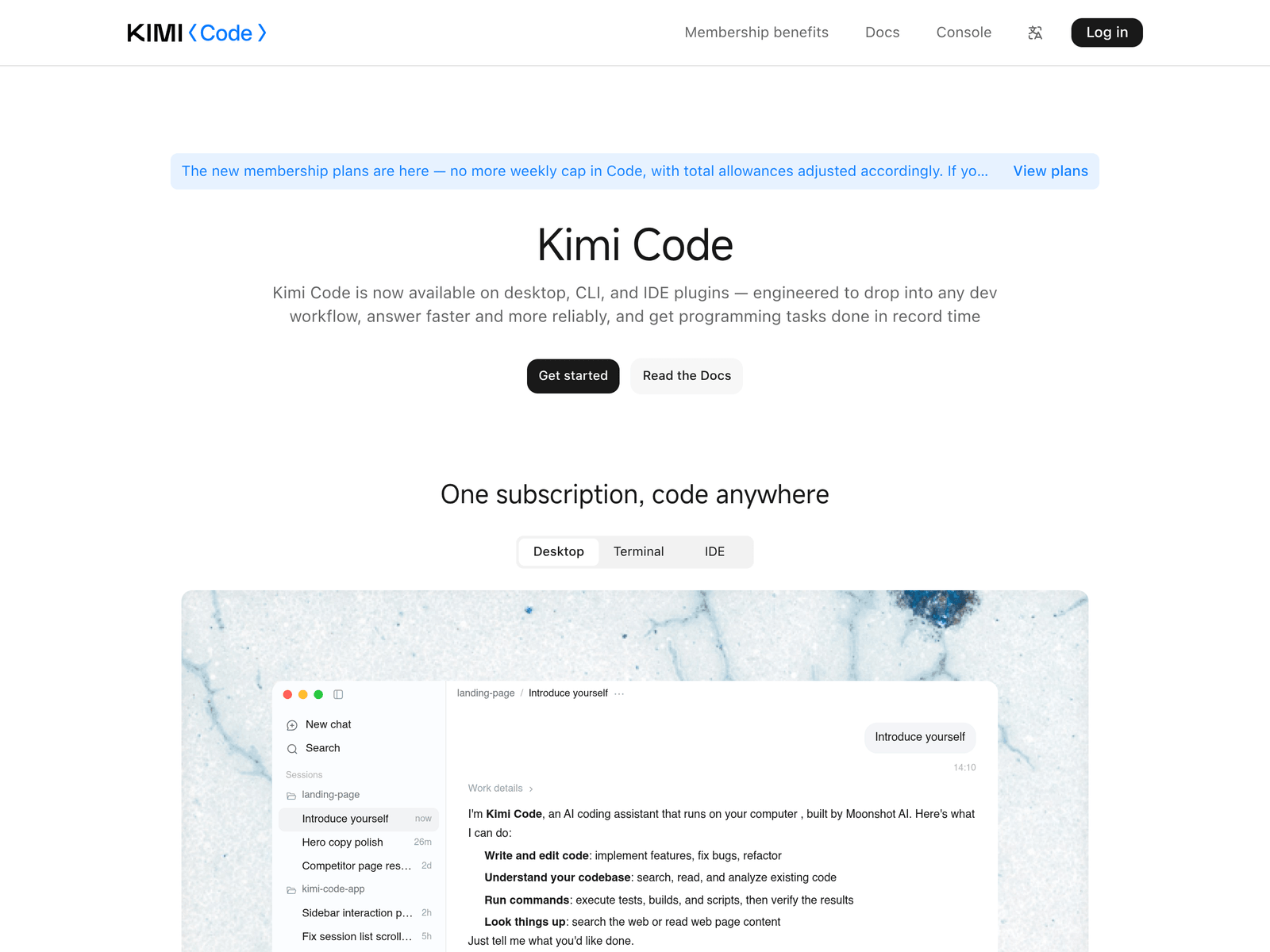
- Tool name: Kimi Code
- Developer: Moonshot AI
- Official website: https://www.kimi.com/code
- Category: AI Coding Tools
Kimi Code is an AI coding tool for developers with desktop, CLI, and IDE plugin access. It can write, edit, read codebases, run commands, and check results.
Overview
Kimi Code is presented as an AI programming agent and CLI tool powered by Kimi K3. The official page describes it as a developer-focused AI toolset that combines a high-performance CLI with fast model access. It is designed to automate code generation and support programming tasks inside existing workflows.
The product is available across desktop, terminal, and IDE plugin environments. This makes it suitable for developers who prefer different working setups, from standalone chat sessions to command-line use or editor integration. The page also notes that one subscription can be used across supported Kimi Code endpoints.
Key Uses
- Writing and editing code: Kimi Code can help implement new features, fix bugs, and refactor code, making it useful for concrete development tasks rather than only general questions.
- Understanding existing codebases: It can search, read, and analyze current code, helping developers locate files, trace logic, and understand unfamiliar projects more quickly.
- Running commands and checking results: Kimi Code can execute tests, builds, and scripts, then help interpret the output, which is useful for iterative development and verification.
- Looking up information: It can search the web or read webpage content, helping developers find documentation, examples, or implementation references while working.
- Working across multiple endpoints: Kimi Code supports desktop, CLI, and IDE plugin access, allowing developers to choose the environment that fits their existing setup.
Who It Is For
- Application developers: Developers building web apps, services, or internal tools can use Kimi Code to generate, modify, and review code during daily work.
- Maintainers of existing projects: Teams or individuals working with legacy code can use it to search the codebase, understand structure, and propose targeted fixes.
- Command-line users: Developers who prefer terminal workflows can use the CLI form to interact with the assistant without leaving their usual environment.
- IDE-centric developers: Those who spend most of their time inside an editor can use the IDE plugin route to keep coding and assistance in the same workspace.
Tips for Best Results
- Define the task clearly: Before asking Kimi Code to write or modify code, state the goal, expected input and output, dependencies, and acceptance criteria to reduce unnecessary revisions.
- Let it read the relevant code first: For changes inside an existing repository, allow the tool to search or read related files before proposing edits, so suggestions are grounded in actual context.
- Review critical changes manually: For authentication, data migration, deployment, or production logic, developers should still inspect generated code and run appropriate tests before merging.
- Choose the right endpoint: Use the desktop app for standalone sessions, the CLI for terminal-centered work, or the IDE plugin when you want assistance close to your editor.
Limitations
- Developer verification is still required: Kimi Code can generate code and run commands, but final responsibility for correctness, security, and maintainability remains with the developer.
- Access may depend on plan details: The page mentions Kimi Code Plan and higher-tier access to the K3 model, so available features and model access may vary by subscription.
- Sensitive data needs caution: When reading code, running scripts, or fetching web content, avoid exposing secrets, production credentials, or confidential repository data.
Frequently Asked Questions
How do I start using Kimi Code?
The official page provides options to download the Windows app, install the CLI, or read the documentation. Developers can choose the endpoint that matches their workflow, then follow the setup steps. If a Kimi Code Plan is required, the pricing or console page should show the next steps.
Is Kimi Code free to use?
The available information does not confirm a free tier. The page emphasizes subscription plans, membership benefits, and higher-tier access to the K3 model. For current pricing or trial availability, check the official website directly.
Which platforms does Kimi Code support?
Kimi Code is described as covering desktop, CLI, and IDE plugin use. The page specifically mentions a Windows download. Support for other operating systems or editors should be confirmed through the official documentation.
How is Kimi Code related to Kimi K3?
Kimi Code is described as an AI programming agent and CLI tool powered by Kimi K3. The page also notes that higher-tier plans can use the K3 model. In short, K3 refers to model capability, while Kimi Code is the developer-facing product.
What kinds of coding tasks can Kimi Code handle?
It can help write code, edit code, understand codebases, run commands, and look up information. This makes it suitable for feature development, debugging, refactoring, and project exploration, though important changes should still be reviewed by a developer.