
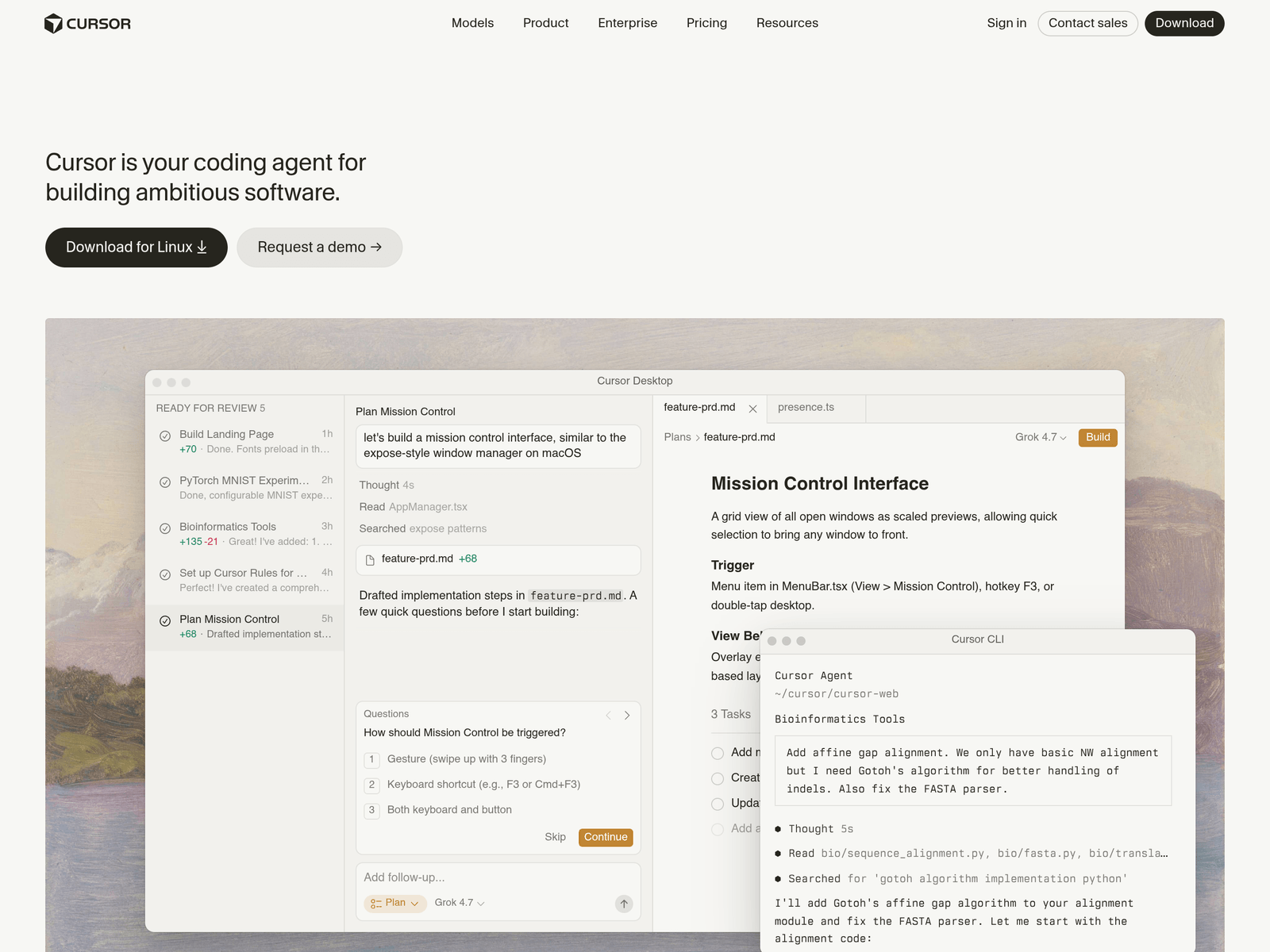
- Tool name: Cursor
- Developer: Anysphere
- Official website: https://www.cursor.com/
- Category: AI Coding Tools / AI Coding Tools
Cursor is an AI code editor and AI coding tool for software development workflows. It uses agent-based workflows to turn ideas into code and reduce repetitive engineering tasks. The tool supports coding, planning, review, and automation.
Key Uses
- Code generation and task execution: Cursor can convert development requests into code, making it suitable for handing specific tasks to an AI agent, such as creating components, implementing features, or progressing work based on documentation.
- Agent-based development collaboration: The tool supports agentic workflows where developers keep decision-making responsibility while Cursor performs parts of the coding work. This can shorten the path from an idea to a working implementation.
- Automation of repetitive work: Cursor can automate repetitive development tasks, such as applying rules, generating structured code snippets, or reducing the time spent on manual, repeated operations.
- Multi-step development assistance: The tool is positioned around assistance across multiple stages of development, including planning, code generation, behavior viewing, and parallel task handling.
- Desktop and command-line use: Official materials show both a Cursor Desktop interface and a Cursor CLI interface, allowing developers to work through a graphical environment or interact with the agent from the command line.
- Rules and context management: The interface references Cursor Rules, file mentions, and command usage, indicating that the tool can organize development tasks around project files, rules, and context.
Who It Is For
- Software developers building new features: Cursor is useful when developers need to quickly create components, pages, or feature modules and want an initial implementation generated from a clear request.
- Engineering teams planning development work: Teams can use Cursor to break requirements into tasks, generate plans, and organize development steps before writing detailed code.
- Developers handling repetitive coding tasks: For work that follows clear patterns or requires repeated edits, Cursor can reduce manual input and improve completion speed.
- Users exploring parallel agent workflows: The tool describes agents that work autonomously and run in parallel, which may suit developers managing several small tasks, experiments, or independent modules.
- Documentation-driven projects: When a project already has requirement documents, specifications, or reference files, Cursor can use that context to generate or adjust code according to the stated goals.
Tips for Best Results
- Define the task clearly before running it: Write the request with a clear goal, inputs, expected output, and constraints. This helps Cursor produce code that matches expectations and reduces rework.
- Use project files and rules as context: Referencing relevant files, rules, and context can help the tool understand the project structure and avoid generating code that conflicts with existing patterns.
- Keep human review in the workflow: Even when Cursor performs tasks automatically, developers should review the generated code for logic, edge cases, security, and maintainability before using it in important systems.
- Start with low-risk tasks: It is practical to begin with auxiliary, repetitive, or experimental work. After understanding how the agent behaves, developers can apply it to more important parts of the workflow.
- Choose between desktop and CLI based on the task: Cursor Desktop may be better for visual planning and review, while Cursor CLI may suit command-line workflows and direct agent interaction.
Limitations
- Generated code still needs verification: AI coding tools can produce code that appears reasonable but is not fully correct. Testing, review, and security checks remain necessary, especially for production use.
- Results depend on context quality: Cursor’s output is likely to depend on how well the task description, project files, rules, and context are provided. Incomplete or unclear instructions may require multiple revisions.
- Automatic execution requires caution: Agent-based tools can modify files or perform tasks independently. Developers should confirm the scope of actions before allowing changes to critical files, dependencies, or configurations.
- Not all details are covered by available information: The available official information does not specify pricing, free access, supported programming languages, enterprise features, or integration details, so those points should be checked with the official site.
Frequently Asked Questions
How do I start using Cursor?
You can start from the official Cursor website by downloading the desktop app or exploring the CLI. After opening a project, describe a development task in natural language and ask the tool to generate a plan or code. It is best to begin with simple components or repetitive tasks.
What kind of developers is Cursor suitable for?
Cursor is suitable for software developers, engineering teams, and builders who want to move faster by delegating parts of development to an AI agent. It is especially relevant for users comfortable with agent-based workflows. Developers who need full manual control over every change should evaluate it carefully.
How is Cursor different from a traditional code editor?
A traditional code editor mainly provides file editing, coding tools, and extensions. Cursor places more emphasis on agentic development, including task planning, automatic execution, parallel work, and context-aware assistance. The practical value depends on project context and human review.
Does Cursor support command-line use?
The official page shows a Cursor CLI interface, indicating that command-line use is available. Developers can interact with the agent, reference files, and run tasks from a terminal environment. Specific commands and configuration details should be checked in the official documentation.
Is Cursor suitable for team workflows?
The official page describes daily use by teams building software and shows interfaces for plans, tasks, and review. This suggests that Cursor can support team-oriented development workflows. However, permissions, deployment options, and collaboration details should be confirmed with official information.